How many blocks the channel list has in the PDF
Where to choose the blocks of the channel list, what Auto does, what happens when a text does not fit.
In the PDF, the channel list is split into blocks, side by side. By default the app decides how many depending on how much room your channels take, but if you are a Pro/Premium user you can force a specific number of blocks in each rider, for inputs and for outputs:
- In the channel list, open the ⋮ menu and click Channel list blocks… (it is also in Rider options).
- Pick Auto, 4, 3, 2 or 1.
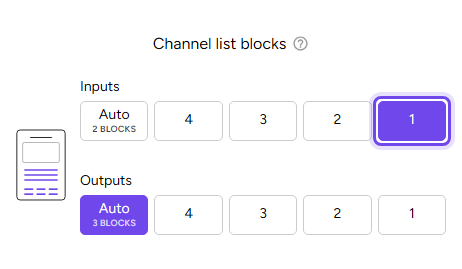
- Auto picks the number of blocks (up to 3) depending on how much room the channel texts take. Inside the button you can see how many it will use, depending on your texts.
- A number from 1 to 4 forces the layout to split the list into that number of blocks: for example, 32 inputs into 4 blocks of 8.
With 1 block, the list is as wide as its longest name needs, with a little room to spare, and is centered on the page.
If a text does not fit:
- The PDF shortens it with “…”.
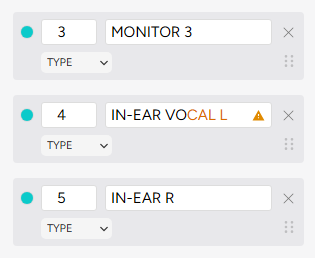
- In the channel list, the letters that do not fit turn orange, with a triangle. Hover over the triangle to see what to do.
- If there is no room even for the names, the PDF uses fewer blocks and a notice tells you so.
In the shared link, the list never has more blocks than the PDF; with one, it is centered too, and on a phone it shows in one column.