Exporting the channel list to your mixer
What is sent to your mixer and what is not, the supported mixers, how to load the file on each one, and what to do if yours is not listed.
Export to mixer creates a file with the names and colors of your channel list so you can load it on your mixer instead of typing them one by one by hand.
- Open the channel list (the list icon in the toolbar).
- Click the list's ⋮ menu and choose Export to mixer.
- Choose your mixer, check the table and click Download file.
- Follow the instructions shown below it to load the file on the mixer.
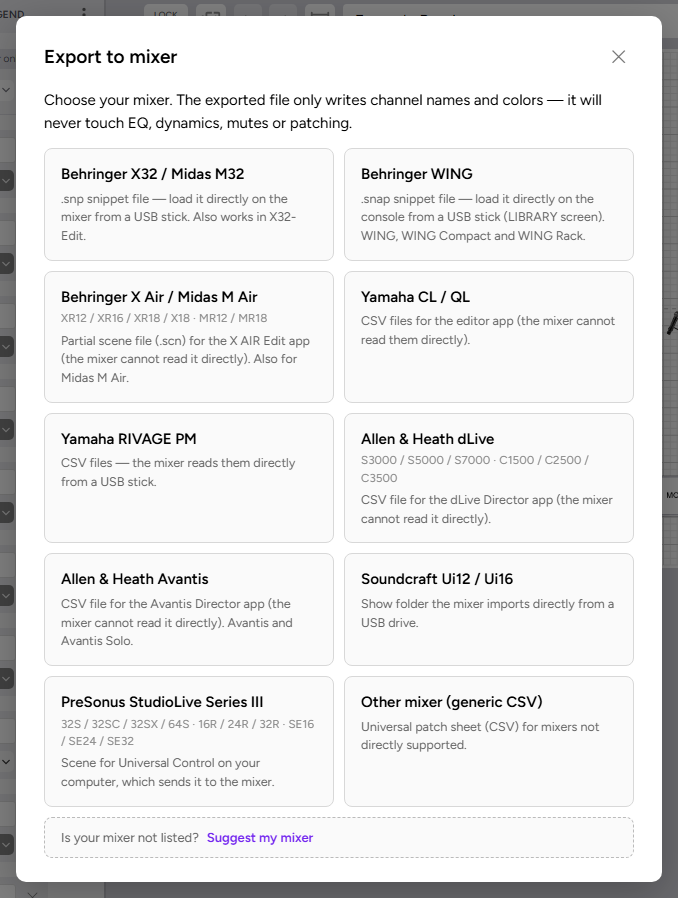
What changes on your mixer
The file only writes channel names and colors. It never touches EQ, dynamics, mutes or patching, so you can load it on a show you have already set up.
- Channel: each row goes to the mixer channel with the same number it has in your rider. If the number is repeated, empty or out of range, the row stays grey and is not exported until you type a channel for it.
- Name: it is shortened to the maximum length your mixer accepts, and you can edit it in the table. Accents are removed (é becomes e, ñ becomes n), except on the Ui12/Ui16 and the StudioLive Series III, which accept them.
- Color: the closest color in your mixer's palette is picked, and you can change it or leave the channel without a color. A channel with no color in the rider is exported as white.
- Outputs: if you have an output list, its names and colors go to the mixer's mix buses (auxes).
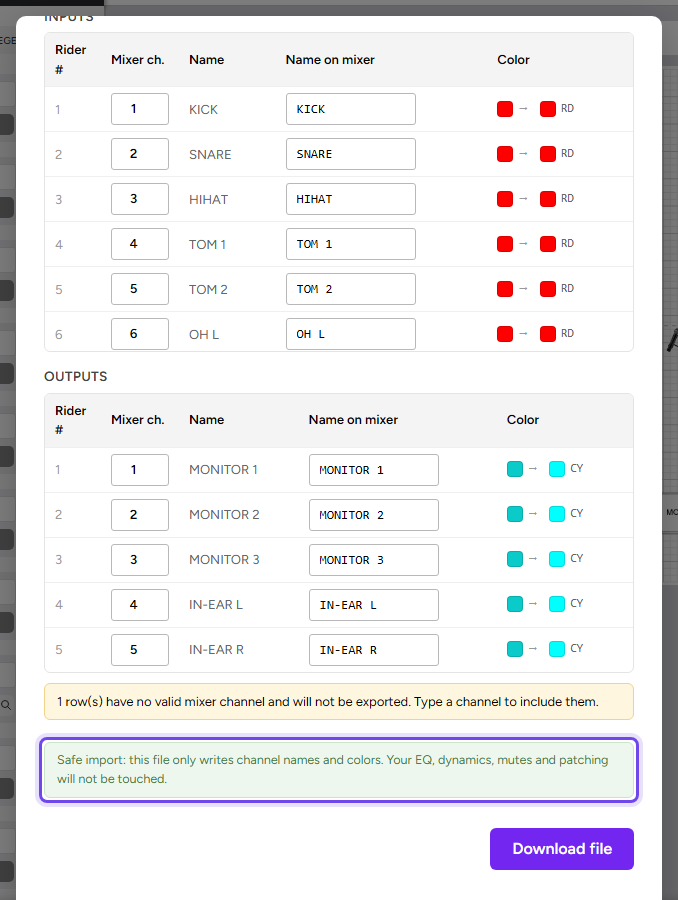
Supported mixers
For each one, the full instructions appear in the dialog when you download the file. This is the summary.
Behringer X32 / Midas M32
A .snp snippet the mixer reads from a USB stick: on the SCENES screen, Snippets tab, press UTILITY, import it into a free slot and load it with GO. It can also be loaded with the free X32-Edit app.
Behringer WING
A .snap snippet loaded from a USB stick on the LIBRARY screen. Works on WING, WING Compact and WING Rack. The file unlinks each channel from its source's name and color (Customization link) so that your names show up; it does not affect the audio, and you can link it again from the channel's HOME screen.
Behringer X Air / Midas M Air
For XR12, XR16, XR18, X18, MR12 and MR18. A partial .scn scene loaded with the free X AIR Edit app (M AIR Edit for Midas), using the Load button.
Yamaha CL / QL
CSV files for the free CL/QL Editor app: File → CSV File Import, then transfer the session to the mixer as usual. The mixer does not read the CSV files directly.
Yamaha RIVAGE PM
CSV files the mixer reads from a USB stick: SETUP → SAVE/LOAD, then CSV EXPORT/IMPORT → IMPORT. It also works in the free PM Editor app.
Allen & Heath dLive
A CSV for the free dLive Director app: on the System screen, Import CSV and Apply, then transfer the show to your dLive. Requires version V2.00 or later.
Allen & Heath Avantis
A CSV for the free Avantis Director app: Connection → CSV Import/Export menu, Import and Apply, then transfer the show to your Avantis. Works on Avantis, Avantis Solo and Avantis Solo Ultra, with version V1.20 or later.
Soundcraft Ui12 / Ui16
A show folder the mixer imports from a USB stick: in the web interface, SETTINGS → SHOWS → IMPORT, then load the show and its "Ridermaker" snapshot. The Ui merges the names and colors with what you already have and leaves everything else as it was.
PreSonus StudioLive Series III
For the 16, 24, 32, 32S, 32SC, 32SX and 64S consoles, the SE models and the 16R, 24R and 32R racks. A scene for the free Universal Control app: put its folder in Documents/PreSonus/StudioLive AI/Library/Presets/Project, then in Import/Export copy the scene (not the project) from Internal to an empty scene slot on your mixer and recall it. Choose your model above the table: the 64S has 64 channels and 32 FlexMixes, the 16R 16 channels and 6 FlexMixes, and the rest 32 and 16.
Another mixer: generic CSV
If your mixer is not listed, you can download the channel list as a patch sheet (CSV) and use it as a reference to type the names by hand.
In Chrome and Edge, the mixers that use several files or a folder (CL/QL, RIVAGE, Ui12/Ui16 and StudioLive Series III) can be saved straight to a folder or to the USB stick, without unzipping a ZIP file.
If your mixer is not listed
At the end of the list of mixers, click Is your mixer not listed? and type the brand and model (you need to be logged in).
- We can only add mixers that can import names from a file without changing the rest of their settings, and before releasing one we need to check that it works on a real mixer.
- If we are already evaluating yours, the form explains how to export a file from your mixer and asks you to attach it: that is what we need to know whether we can add it.
- If your mixer is already supported, the form tells you and takes you to its export table.
- If we already know your mixer does not allow it, the form tells you as you type the model.
Downloading the file is a Pro/Premium feature.